Creating a Signing Session
Create a signing when you need to send documents or forms to be signed or reviewed by various participants, or when you need to sign a document or form yourself.
Steps
- Navigate to Signings.
The Signings page opens.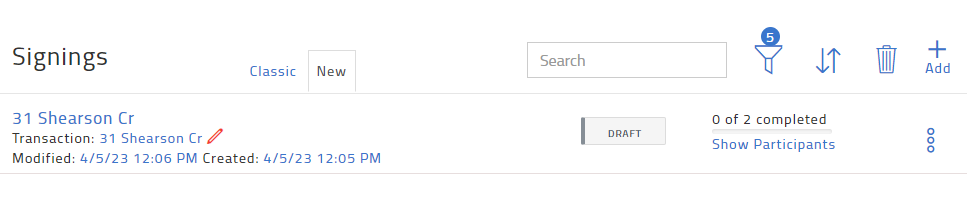
- Click Add.
The Create Signing popup opens.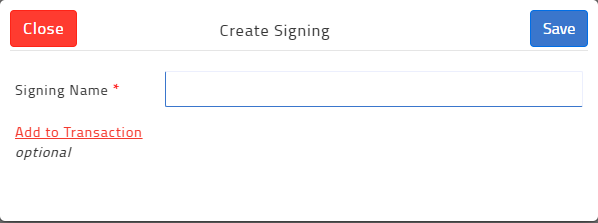
- Enter a name for the signing.
- To add the signing to an existing transaction, do the following:
- Click Add to Transaction.
The Assign to Transaction popup opens.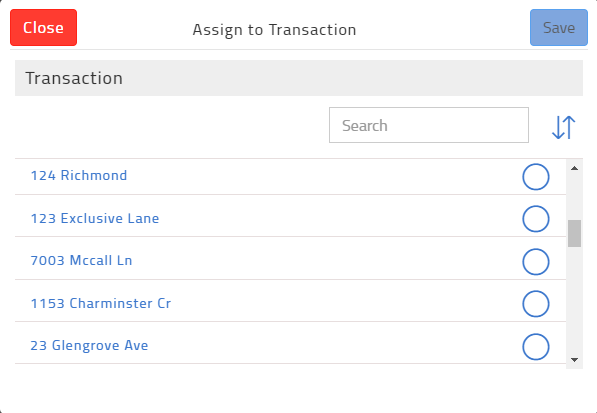
- Locate and check the transaction you need to assign this signing to.
- Click Save.
- Click Add to Transaction.
- Click Save.
The create signing page opens.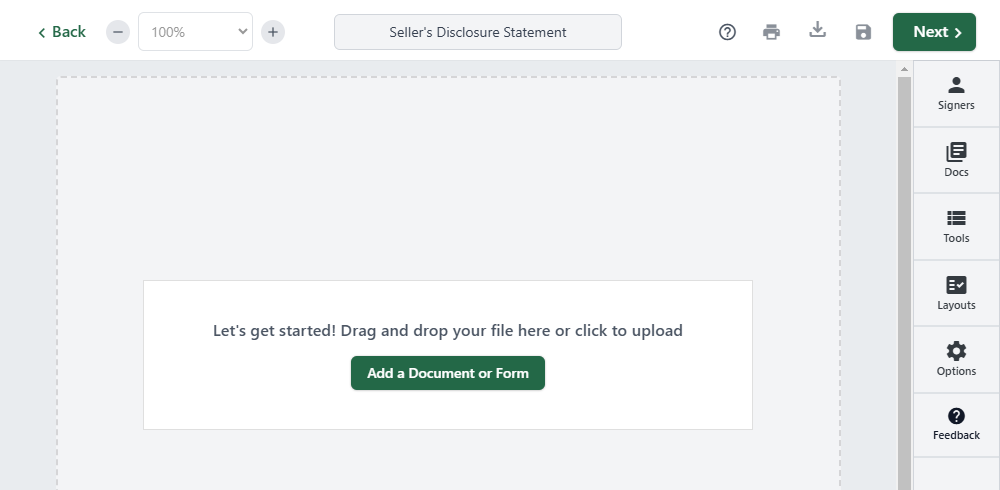
- Add participants to the signing. Each signing must have a minimum of one participant (of any type) or, if only you need to sign, one signer action for the Myself participant.
- Add documents or forms to the signing. Each signing must have at least one document or form.
- Add signing fields and markups, such as highlighting and strikeouts, to the documents or forms. Each signer-type participant must have at least one signer action.
- Set up additional options, such as signing expiration dates and automated reminders, if needed.
- Do one of the following:
- If you are not ready to send your signing yet but need to save it, click Back, then click Save.
- If you are finished adding participants, documents, and signing fields, and are ready to send the signing to all participants, click Next.
Related Articles
Sending your Signing
Send signing invitations to participants when you are finished creating the signing, including adding participants, documents, forms, signing fields, and markups. Invitations are sent to the email address associated with a participant. When sending a ...Resending A Signing
Resend a signing if a participant(s) cannot find or did not receive the signing invitation. When resending a signing, the signing is only re-sent to participants that have not yet completed the signing. If you need to resend a signing to a ...Creating a Checklist
Having checklists for each of the key types of transactions you create can save you a lot of time. The checklist provides a list of things you need to do, or documents you need to gather to complete a transaction. Checklist items can be mandatory or ...Creating a Transaction
You can use a transaction to represent any interaction with a client, from a new listing to the time of an offer. You can add a transaction manually, where you manually provide all of the transaction information. You can also use an MLS listing or ...Customize Your Dashboard
Each user of TransactionDesk can personalize their view of the transaction dashboard to make it as meaningful as possible. When you customize your view, it does not affect any other user's view of transactions. It does, however, define the view you ...